DIRE Studio
ShutterCount Mobile Customer Service

- ShutterCount Mobile Customer Service
- ShutterCount Mobile App Comments & Reviews (2026)
- ShutterCount Mobile iPhone Images
- ShutterCount Mobile iPad Images
*** The original, most feature-rich and only iOS shutter count reader that works with all new Canons ***
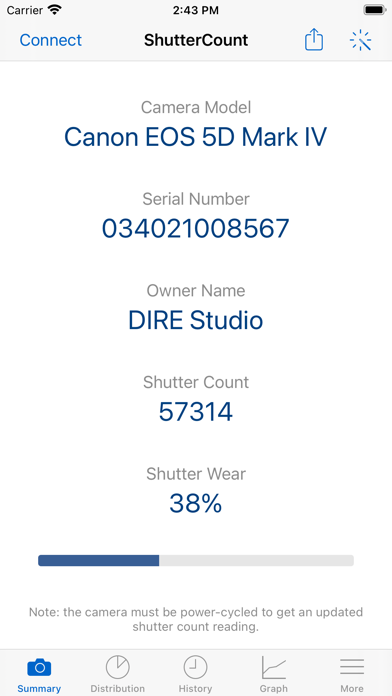
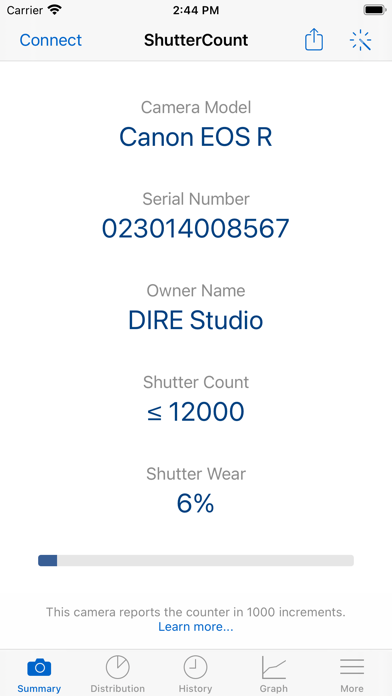
ShutterCount displays the number of shutter actuations (the shutter count) of your Canon EOS, Nikon or Pentax digital camera - see the complete list of certified models below. The shutter count is read directly from USB or Wi-Fi connected Canons, and from image files for Nikon and Pentax cameras. With ShutterCount you can easily check whether a newly purchased camera is really new, or how heavily used a pre-owned item is. And you can save a trip to a service center by doing the reading for yourself.
BASE FEATURES
• Unlimited readings
• Counter for still photos
• Wear indicator with numeric and graphical rated shutter life percentage display
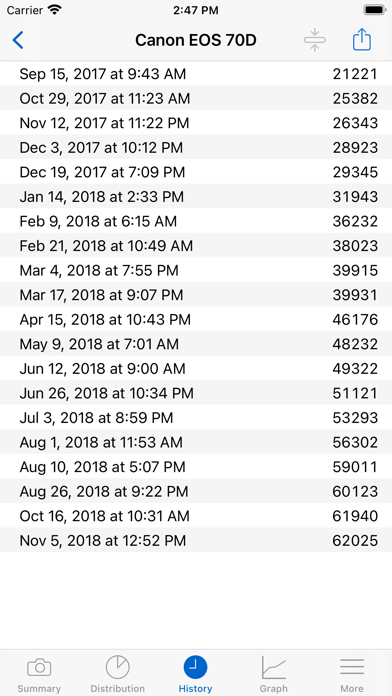
• History logging to track camera usage; logs are stored in CSV format that can be imported into Numbers or Excel for further processing
• Reports in plain text format
• Wizard to guide you through the reading process
LIVE VIEW PACK (optional in-app purchase supporting select Canon models)
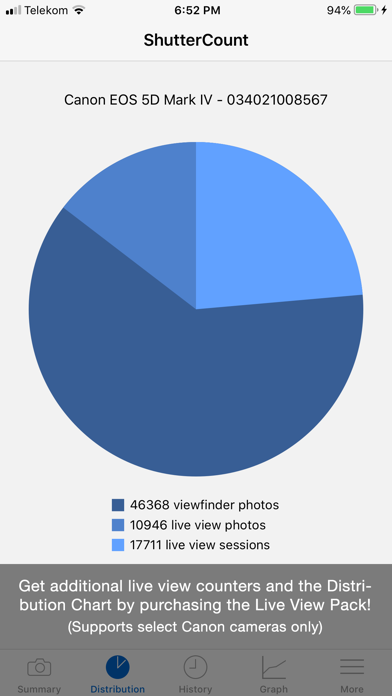
• Counters for live view/videos and electronic shutter
• Distribution chart
PLUS PACK (optional in-app purchase)
• Graphing
• Shutter life forecasting (not available for some Nikon and Pentax models)
• History deduplication
• Canon EOS camera management (date/time sync, owner name editing, copyright information setting, outdated firmware warning, IPTC export/import)
• Raw copyright information display and secure personal data wiping for Canons
CERTIFIED CAMERAS
USB connection (requires a Lightning to USB Camera Adapter or a USB-C equipped iPad; Wi-Fi on the camera must be disabled):
• Canon 1D4/1DC/1DX/1DX2/1DX3/5D2/5D3/5D4/5DS/5DSR/6D/6D2/7D/7D2/40D/50D/60D/60Da/70D/77D/80D/90D/100D/200D/200D2/250D/450D/500D/550D/600D/650D/700D/750D/760D/800D/850D/1000D/1100D/1200D/1300D/1500D/2000D/3000D/4000D/8000D/9000D/M6II/M50/M50II/R/R1/R3/R5/R5C/R5II/R6/R6II/R7/R8/R10/R50/R100/Ra/RP; Kiss F/M/M2/X2/X3/X4/X5/X6i/X7/X7i/X8i/X9/X9i/X10/X10i/X50/X70/X80/X90; Rebel SL1/SL2/SL3/T1i/T2i/T3/T3i/T4i/T5/T5i/T6/T6i/T6s/T7/T7i/T8i/T100/XS/XSi
Wi-Fi/Ethernet connection is supported using built-in networking or Canon transmitters on the above cameras having the "EOS Utility" function. The camera must be paired directly with ShutterCount using this function.
Image files:
• Nikon D2H/D2X/D2Xs/D3/D3S/D3X/D4/D4S/D5/D6/D40/D40X/D50/D60/D70/D70s/D80/D90/D200/D300/D300S/D500/D600/D610/D700/D750/D780/D800/D800E/D810/D850/D3000/D3100/D3200/D3300/D3400/D3500/D5000/D5100/D5200/D5300/D5500/D5600/D7000/D7100/D7200/D7500/Df/Z5/Z6/Z6II/Z6III/Z7/Z7II/Z8/Z9/Z30/Z50/Zf/Zfc; 1 AW1/J1/J3/J4/J5/V1/V2/V3; Coolpix A
• Pentax *istDL/*istDL2/645D/645Z/K1/K1II/K3/K3II/K3III/K3IIIMono/K5/K5II/K5IIs/K7/K10D/K20D/K30/K50/K70/K100D/K100D Super/K200D/K500/K2000/Km/KP/Kr/KS1/KS2/Kx
Cameras not listed here are not supported.
FOR DETAILED COMPATIBILITY INFORMATION PLEASE VISIT: https://www.direstudio.com/shuttercount/tech-specs
Questions? Problems? Check out the Getting Started Guide (https://www.direstudio.com/shuttercount/getting-started), the FAQ (https://www.direstudio.com/shuttercount/faq), or contact our support by tapping Report a Problem on the More tab!
DISCLAIMER: The app displays the camera's internal counter. DIRE Studio is not responsible for how well and accurately the camera maintains that counter. The forecast is calculated based on your previous usage, and will change if you use the camera differently in the future.
ShutterCount Mobile App Comments & Reviews
ShutterCount Mobile Positive Reviews
Works but difficult to figure out at firstOk…I am technical and still had difficulty pairing my canon cameras at first. 1. WiFi settings on camera should log into your home wifi (same as your phone is on) 2. Choose option on your camera for computer (even if using a phone…never choose phone) 3. Open app and choose connect via wifi (top left button) 4. Phone app will find your camera choose ok and then choose ok on your camera 5.good luck!.Version: 6.5.1
Works perfectly fine without issuesSure, it may be a little awkward trying to figure out how to used it but once you get it you have an “ohhhhh duhhhh” moment. Don’t let other peoples incompetence fool you into believing it’s a bad app. Because it’s not. I’ve used it on 5D mark iv, R6 and R6 mark ii. No issues on any of those. At all. Ever. The app does what it’s advertised to do and more, if you want to pay the extra premium. Get it, no regrets..Version: 6.5.1
Worked well with my EOS 80DAfter reading some of these reviews I was skeptical. I went ahead and bought the app anyway. Figured out the wifi pairing in 5 minutes without using the guide. Not sure why everyone is having trouble with it, it was fairly simple. Works great although the $5 price is steep just for some camera info..Version: 3.3
Works On Canon 80DJust wanted to verify this app works to get you the shutter count on the 80D. Just got a Canon Refurb and was curious. Had to watch a tutorial online to connect as if I was using a computer EOS Utility. My Opinion: Price is steep at $5 but didn’t see any other choice that wasn’t going to be hit or miss effort. Hopefully I’ll get more use out of it in the future..Version: 4.0
Worked for me!Connected to both of my Canon 80D cameras and was able to retrieve shutter counts with no issue. Set was easy. Make sure your device is compatible with their app before you download. $7 isn’t cheap, but at least you only have to pay once!.Version: 6.2
Canon 70D won’t detect a 5ghz router signalShutter count worked great on my 70D but not at first. I thought it was the app but it was my router. It was on the 5ghz band and my 70D could not detect its signal. So I switched my router to the 2.4ghz band setting and it worked like a charm. My 70D was able to find my WiFi signal and connected to the app in a matter of seconds..Version: 4.3
It’s hard but it will workI’ve spent more than 2 hours between my desktop and my mobile phone it took me 30 mins to figure it out connect to your WiFi from the camera and press connect on the app it will work I promise I know you might think it’s a scam but it’s not.Version: 6.5.1
Very easy to use!The app and camera communicate perfectly when connected to the same Wi-Fi connection. Absolutely no issues. I was able to get my shutter count very quickly and without any hassle. Canon Rebel T8i/ 850D. Thank you!.Version: 6.2
Needed shutter count to sell 5DmarkIVAll you need to do is turn on camera and go in communication settings>built in wireless settings > WiFi function > remote control > easy connection Then go in your phone settings open WiFi settings and connect to camera Then open up this app on phone and select new connection and it connects immediately and shows shutter count Great app. Only difficult part is every camera model is probably a bit different.Version: 4.9
Awesome!Not sure why everyone’s having problems. Just simply read the instructions and it will work. I have a Canon 80D and it gave me all the information that I needed. Especially the ShutterCount. I highly recommend this product! It works!!!.Version: 3.5
Works with canon 6d and 6d mark iiThe instructions are pretty clear, just read the instructions and it only takes a few minutes to get your shutter count..Version: 6.0
Works Fine On EOS RTook about 5 minutes for me to read instructions and connect via WiFi from iPhone XS to my Canon EOS R. It immediately identified my camera’s serial number and shutter count. No issues, works, expensive for what it is..Version: 4.7
Worked for 70D and IPhoneConnected without issue, make sure to choose the computer icon when connecting even on a IPhone or IPad. Flawless walkthrough!! Thanks!.Version: 4.4
Maybe a Worthwhile App …… but couldn’t connect my 5D4 to Wifi..Version: 5.1
Awesome appI had to eat crow on this one. I first left a not so nice review of this app until I went back and actually read the instructions and got shutter counts for both my Nikons. So yeah, it does what it should 🦠.Version: 4.0
Great!!! Works for Eos RP R and my R6All three RP R and the R6 all work on this app! Very easy to use and it guides you threw! Worth the money ! Took me 5 mins and seen where all 3 canon cameras were at in mins thanks !.Version: 6.3
Worked on Canon EOS RWas a little tricky to get connected with camera even when reading instructions but it worked. Wish the app was $2.99 and not $5.99 but I guess price is determined partially by demand and competition..Version: 4.4
Slightly confusing but worked on my 5D Mark IVConnecting through the camera’s utility was a little tricky but this worked..Version: 4.7
Piece of cake1. Take 2 ended usb-c cable 2. Hook one end to your mirrorless camera 3. Hook other end to your I-pad 4. Pop open your app. Vola!.Version: 6.5.1
Canon 6D MK IIPricey, not clear but does work . On The Phone : Open the app, click Conect, New Camera pairing On the Camera: Using WiFi settings connect to Remote Control (Eos Utility), than register a device for connections , chose switch networks and connect camera to the same WiFi as your iPad/iPhone then the app will connect to your camera and will display your shutter count . Hope this helps ..Version: 4.0
Shutter Count on my 7d mark iiThis actually worked great for me and my friends camera!.Version: 6.7
Eos utility mode a must!Worked for me. Remember the trick is connect via Eos utility mode (pc looking icon) and not just mobile WiFi. Worked on 5d iv with iphoneX.Version: 3.5
It’s amazingIt’s very useful app I ever used, but for counting the shutter of Canon EOS 90D just shows the approximate shutter number Please fix it Thanks.Version: 4.2
The app works but the instructions are vagueI recently bought a Canon 6D Mark II secondhand and I wanted to check the shutter count to ensure it was a low shutter count as advertised. After going through a few online shutter count programs, downloading and installing sketchy software, I finally caved in and decided to pay $4 for this app (which isn’t all that pricey). Opening the app, you’re welcomed with a simple and clean design. There’s a “connect” option at the top and you have a menu bar at the bottom. Naturally, I tapped “connect” and that’s it. I waited for some sort of response or prompt to let me know what to do next... but nothing. After waiting a while, there is a “getting started” option, so I went with that. You’re led to a web page full of different instructions and methods on how you can check your shutter count. Since I was going for the WiFi connectivity route, I can’t speak for the other methods. Since I wanted to check my shutter count on my 6D2 via WiFi, the instructions were extremely straightforward but vague. At least, for someone who is new to DSLRs and WiFi capabilities in DSLRs, this is where the app falls short. The instructions tell you connect to your EOS utility for the pairing process but not actually connect to the software. It even advises that I can find out how to do this in my camera’s manual describes in detail. So I check the manual for my 6D2 and nope. Not a single thing mentions this pairing process. Again, as someone who’s never heard of this software, you can imagine my confusion. Eventually, I end up fiddling my camera’s WiFi communication settings. Finally, after about an hour, I figured it out.l for my particular camera at least, but here’s what I did to connect my 6D2 to the app. Step 1: Go to your WiFi communication settings and enable WiFi. Step 2: Make sure your WiFi settings that a password is required Step 3: Go to WiFi function and connect to your computer (trust me, just do it) Step 4: Register as a new device/ a device for connection Step 5: on your iPhone, go to your WiFi settings (where you connect to different WiFi networks) Step 6: Find your camera’s network/WiFi name among the other WiFi network connection options and select it. (If you don’t know the name of your camera’s WiFi network, it should be showing in your camera currently under SSID) Step 7: The WiFi network will ask for a password before you can connect. Enter the password that should be on your camera’s screen into the WiFi’s password on your iPhone screen Step 8: Just follow through a few screens on your camera (just press OK a few times) and viola! Your iPhones screen should you show your your camera’s shutter count and other info. That took me about an hour to figure out in my own because of how blatant the instructions were. But it works. Obviously, your camera must be listed on the approved/certified camera’s that work with this app otherwise, you’ll just have wasted a few bucks and some time. To the app devs: I urgently suggest you take the time to revamp your WiFi connection instructions or perhaps, provide a more layman-worded detailed path for users and especially take in consideration of new camera users not familiar with camera’s or just not tech savvy. (Maybe provide a list of instructions for each camera make/model on how-to connect via WiFi?) Sure, it could take a while to do that but more people will thank you for that and I’m sure you’ll end up getting a lot more positive reviews. Thanks! I will continue to the use app!.Version: 3.3
ExcelentThis is only app working prefectly 4 years.Version: 6.4
Works with 5D Mark IVTsia.Version: 3.2
ExcellentWorks very well with the Canon EOS 70D..Version: 2.0
Software works as advertisedApp was relatively easy to setup and gave an accurate shutter reading. There are some extra features hidden behind a paywall which was disappointing but then again, you only use this app when selling or buying a used camera. Camera tested on: Canon EOS 80D.Version: 5.0.1
Worked great on Canon 80DSuper easy and worked flawlessly on iPad and connecting to camera via Wifi. If it's not working for you it's because you are doing wrong. Follow the instructions.Version: 3.2
Free International Money Transfer 💸Enjoy high maximum transfers into more than 20 currencies while saving up to 90% over local banks! The cheap, fast way to send money abroad. Free transfer up to 500 USD!Version: 7.0